Matlab Onramp course notes - Part 1 Basics & Environment
Studying the self paced course in matlab academy for academic work - Part 1
Matlab
We as students are somewhat forced to work with matlab especially for academic works. Mostly it became popular with its easy to use interface and behaviour properties. Since I have to use it anyway, might as well learn it and share the notes on it. By the way, matlab and octave is almost equivalant, so I will use Octave in most cases for this blog. feel free to contact me if you find any wrong.
Cource Overview
Contains Almost nothing to note other than the fact we will learn how to calculate if the sun/moon is moving away from the earth or not.
Commands
Mathlab command pannel is basically python commands. But when we just put a math expression the calculated expression value goes to the variable ans
1
2
3*5
>>> ans = 15
we can assign variable like other programming languages. But matlab does not have any increment or decrement operator.
1
2
val = 5
val = val + 10
In matlab workspace we can see the variable values in real time.
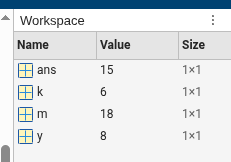
Standart operator such as +, -, *, / etc are available in matlab. And it is recomended to use a semicolon at the end of each expression in matlab.
1
a = b + 5 + x * y;
Variable naming convention
Matlab has some rules for naming the variables. they are generally similar to ANSI C.
- Start with a letter, then use letters, digits or underscores; names are case-sensitive.
- No spaces or punctuation; avoid MATLAB keywords and built-in function names.
- Length limited by namelengthmax (usually 63).
- Use descriptive names; prefer camelCase or snake_case; reserve single letters for indices.
Workspace saving and loading
Matlab workspace is basically the ram storage which stores the variable names and values. so when we want to save/load to persist the workspace to .mat files. Examples:
1
2
3
4
5
6
7
8
9
10
11
12
13
14
15
16
17
18
19
20
21
22
23
24
% save entire workspace as myWorkspace.mat
save myWorkspace

% or from script mode
save('myWorkspac.mat')

% save specific variables
save('data.mat','A','B')

% or from console mode
save data A

% clear command window
clc

% clear workspace
clear

% load entire saved workspace
load myWorkspace

% lead a variable in saved
load myWorkspace A
Notes and alternatives
- Binary .mat (default) is fast and preserves types; use -v7.3 for very large variables.
- For human-readable export, use writematrix/writetable/readmatrix/readtable (CSV) or save(…,’-ascii’) for plain text.
- For very large files or partial I/O, use matfile:
1
2
m = matfile('big.mat','Writable',true);
m.var(1:1000) = someData;   % avoids loading whole variable into memory
- The GUI Workspace browser also provides Save/Load and Import/Export options for interactive use.
- To clear before loading: clearvars; then load(‘file.mat’) to avoid name clashes.
- Use who/whos to list workspace variables and memory usage.
- Back up configuration: save(‘startup_workspace.mat’) and restore with load in a session.
Built in functions
MATLAB has built‑in constants (pi, i) and functions (sin, sqrt). Example tasks:
1
2
3
4
5
6
7
8
% create x = π/2
x = pi/2

% sine of x
y = sin(x)

% square root of -9 (produces imaginary result)
z = sqrt(-9)
Default Command Window shows limited precision (e.g., x = 1.5708, y = 1, z = 0 + 3.0000i). Use format long / format short to change displayed precision:
1
2
3
4
format long
x
format short
x
MATLAB Desktop and Editor
MATLAB Desktop and Editor Introduction
- Default layout: Command Window (enter commands, run on Enter), Workspace (shows variables), and Files panels.
- Use New Live Script to combine code and text; edit in code/text modes and run all with Run.
- Output appears on the right or inline; clicking an output highlights the creating command and can make results interactive.
- Break scripts into sections and run a single section with Run Section.
- Save live scripts to preserve code, output, and descriptions; share with MATLAB users or export for others.
- Panels are movable/minimizable; use Layout to restore the default.
- For this course, use live scripts (Command Window and Workspace are minimized but available).
Editor
The editor is basically the scripting and writing IDE for matlab. All the standard flagging error checking of IDE for other language is still here and we can run the program with this as well. Editor gives two error flags, error and warning. errors are there for where compile will not happen and warnings are for where something redundent is in the code.