Matlab Image Processing Onramp: Classification & Certification
Finalizing the receipt classification algorithm using batch processing and earning the completion certificate.
Classification and Batch Processing
Develop a Metric for Receipt Detection
(1/2) Find Local Minima in a Signal
In general, the row sums of receipt images are visually distinct from the row sums of non-receipt images. The alternating rows of white space and dark text produce characteristic oscillations for receipt images that are absent from other images.
The helper function processImage at the bottom of the live script processes an image using the algorithm you developed in the previous chapters. All you have to do is adjust the drop-down list to load and process an image. Task Select Image 3 from the drop-down list.
1
2
3
I = imread('testimages/IMG_003.jpg'); % Load an image
[S,BW,BWstripes] = processImage(I); % Process the image to obtain a signal
montage({I,BW,BWstripes}) % Show the image
Add An Interactive Task to a Live Script
You can add an interactive live task to a live script by selecting the Live Editor tab in the MATLAB Toolstrip, clicking Task, and navigating to the desired task.
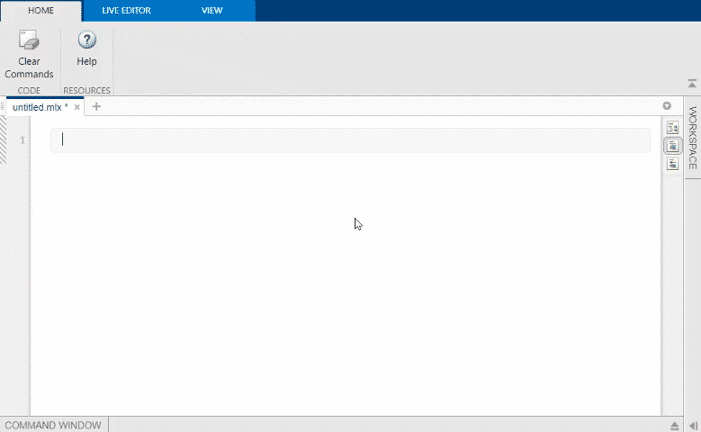 Figure 1: Find Local Extrema task selected from Toolstrip menu
To automate the receipt classification process, you need a way to identify which images have the row sum oscillations associated with text. Each oscillation contains a peak region (white space) and a valley region (text).
You can use the Find Local Extrema task to identify local minima or maxima in a vector automatically. Task Add the Find Local Extrema task to the code section provided for Tasks 2 and 3. Set Input data to S, and set Extrema type to Minima. Leave the other settings as their default values.
1
2
3
4
5
6
7
8
9
10
11
12
13
14
% Find local minima
minIndices = islocalmin(S);

% Display results
figure
plot(S,SeriesIndex=6,DisplayName="Input data")
hold on

% Plot local minima
scatter(find(minIndices),S(minIndices),"v","filled",SeriesIndex=3, ...
    DisplayName="Local minima")
title("Number of extrema: " + nnz(minIndices))
hold off
legend
The number of minima identified by the task is displayed in the title of the associated plot.
Notice that with the default settings of the Find Local Extrema task, there are many shallow minima identified that don’t correspond to rows of text. You can modify the task parameters so that only prominent minima are found. Task Set the Prominence window value to 25. Then increase the Min prominence value until there are exactly 9 minima found.
1
2
3
4
5
6
7
8
9
10
11
12
13
14
% Find local minima
minIndices = islocalmin(S,MinProminence=70,ProminenceWindow=25);

% Display results
figure
plot(S,SeriesIndex=6,DisplayName="Input data")
hold on

% Plot local minima
scatter(find(minIndices),S(minIndices),"v","filled",SeriesIndex=3, ...
    DisplayName="Local minima")
title("Number of extrema: " + nnz(minIndices))
hold off
legend
Setting the Min prominence value to 70 correctly identifies the 9 deep valleys in the signal from Image 3. Will this setting correctly identify minima associated with rows of text in other receipt images? Task Select Image 6 from the drop-down list in Task 1. Do not alter the settings in the live task.
1
2
3
I = imread('testimages/IMG_006.jpg'); % Load an image
[S,BW,BWstripes] = processImage(I); % Process the image to obtain a signal
montage({I,BW,BWstripes}) % Show the image
Look at the row sum plot and examine the valleys identified for Image 6. Nearly perfect! Only one or two rows of text were missed.
While identifying minima in receipt images is important, it’s equally important that minima are not found in non-receipt images. If the algorithm identifies similar numbers of minima for all images, it won’t be able to distinguish receipts from non-receipts. How many minima are found in Image 8? Task Select Image 8 from the drop-down list in Task 1. Do not alter the settings in the live task.
Try counting the minima in the row sums of other images by selecting them in the drop-down list and then running the live script.
On average, how many minima do receipts have? How many minima do non-receipts have?
(2/2) Apply the Classification Metric to an Image
To complete the receipt classification algorithm, count the number of minima in the row sum signals of a batch of images and define a cutoff value that separates receipts from non-receipts.
The array minIndices generated by the Find Local Extrema task is a logical array indicating the locations of the minima in the row sum of an image. Where a minimum is found, the corresponding element in minIndices has a value of 1. The other elements have a value of 0.
You can count the number of minima using the nnz function, which counts the number of nonzero entries in an array.
1
nnz([8 0 7 5 3 0])
This syntax returns the value 4 because the array has four nonzero elements.
1
nMin = nnz(minIndices)
Now, define a cutoff value so the algorithm can classify an image as either a receipt or non-receipt.
Based on observations of the available images, 9 or more minima indicates a receipt. Task Create a logical variable isReceipt that is 1 (true) if nMin is 9 or more and 0 (false) otherwise.
1
isReceipt = (nMin>=9)
Batch Processing with Image Datastores
(1/3) Image Datastores
Image Datastores Using a datastore in MATLAB helps you to manage and process large sets of images efficiently. Using a datastore prevents your MATLAB Workspace from being overloaded with images by overwriting the image variable each time a new file is loaded. A datastore acts as a reference to a data source, such as a folder of image files, without importing the image data into memory. When creating an image datastore, MATLAB stores basic meta-information about the images, like names and formats. You can read and process images one at a time from the datastore, making it easier to handle large batches of images efficiently. In this lesson, you’ll learn to create a datastore and use it to read, process, and classify images in a loop.
So far, you’ve been importing each image into memory individually, and then processing and classifying it. That’s great for one or two images. But in practice, you’ve taken tens, hundreds, or even thousands of pictures. In that case, a better approach is to use a datastore.
A datastore is a MATLAB variable that acts as a reference to a data source, such as a folder of image files. When you create an image datastore, MATLAB looks at the images and stores some basic meta information about them, such as the names and formats. But it doesn’t import the image data. Instead, you can use the datastore to import the images later when you need them, either individual pictures or the whole camera roll. When it’s time to process your images, you can read them from a datastore one at a time and then process and classify the loaded image. Because the image variable will be overwritten each time you load a new file, you won’t end up with a hundred images in your MATLAB Workspace.
In this section, you’ll create a datastore, and use it to read images in a loop and process and classify them.
(2/3) Create an Image Datastore
You’ve created an algorithm that reads a single image and classifies it. In this activity, you’ll have multiple images to process. Image datastores are convenient for locating and accessing multiple image files.
The imageDatastore function creates an image datastore for all the image files in a folder but won’t load them into memory until they are requested.
1
ds = imageDatastore("localFolder")
Task Create an image datastore named ds for the folder testimages.
You can leave off the semicolon to display the output
1
ds = imageDatastore("testimages");
You can access the datastore’s properties by using a period (.). For example, this code accesses the Folders property of the datastore ds.
1
ds.Folders
Task Access the Files property of ds. Store the result in dataFilenames.
1
2
ds.Folders;
dataFilenames = ds.Files;
You can use the numel function to find the total number of elements in an array. Task Count the number of files in dataFilenames by using the numel function. Store the result in nFiles.
1
nFiles = numel(dataFilenames)
Image datastores have several functions that operate on them. For example, you can import all the images by using the readall function.
Try reading and displaying one image from ds by using the read function.
1
2
img = read(ds);
imshow(img)
Click Run Section to run the code section.
Click Run Section again. Is the same image displayed? NO
The readimage function loads the nth image from an image datastore into the MATLAB workspace.
1
img = readimage(ds,n);
Task Read the first image in ds and store the result in I. Then display I. Read and Classify an Image Instructions are in the task pane to the left. Complete and submit each task one at a time.
Do not edit. This code creates the datastore ds.
1
ds = imageDatastore("testimages");
Task 1
1
2
I = readimage(ds, 1);
imshow(I);
The function classifyImage at the bottom of the live script processes and classifies an image using the algorithm you’ve developed in previous activities. Task Call the classifyImage function with the image I as the input. Store the result in isReceipt.
1
isReceipt = classifyImage(I)
1
2
3
4
5
6
7
8
9
10
11
12
13
14
15
16
17
18
19
20
21
22
23
24
25
26
27
function isReceipt = classifyImage(I)
    % This function processes an image and
    % classifies the image as receipt or non-receipt

    % Processing
    gs = im2gray(I);
    gs = imadjust(gs);

    mask = fspecial("average",3);
    gsSmooth = imfilter(gs,mask,"replicate");

    SE = strel("disk",8);
    Ibg = imclose(gsSmooth, SE);
    Ibgsub =  Ibg - gsSmooth;
    Ibw = ~imbinarize(Ibgsub);

    SE = strel("rectangle",[3 25]);
    stripes = imopen(Ibw, SE);

    signal = sum(stripes,2);

    % Classification
    minIndices = islocalmin(signal,"MinProminence",70,"ProminenceWindow",25);
    nMin = nnz(minIndices);
    isReceipt = nMin >= 9;

end
Course Example - Extract Images Containing Receipts
With all the image files readily accessible in the datastore ds, you can load and classify every image with just a few lines of code.
You can use a for loop to iterate through the n images in a datastore.
1
2
3
for k = 1:n
    ...
end
Inside the loop, you can load each image using readimage and classify it using the local function classifyImage. Task Add a for loop around the code in Task 1 so that it iterates through all files in ds. The number of files in ds is stored in nFiles.
Don’t forget to change the 1 to your loop variable in both readimage(ds,1) and isReceipt(1).
1
2
3
4
for k = 1:nFiles
    I = readimage(ds,k);
    isReceipt(k) = classifyImage(I);
end
To display the images classified as receipts, you’ll need their file names.
You can use the logical array isReceipt as an index to extract the file names of the images classified as receipts.
1
ds.Files(isReceipt)
Task Create a variable receiptFiles that contains the names of the files classified as receipts.
1
receiptFiles = ds.Files(isReceipt);
You can display a collection of images by providing their file names as input to the montage function.
1
montage(imageFileNames)
Task Display all images classified as receipts using montage.
1
montage(receiptFiles)
Conclusion
Summary
Summary: Image Processing Onramp Image Processing Onramp Workflow
Throughout the course, you learned various image processing techniques and applied them as part of a receipt identification algorithm.  Figure 2: Steps in the Receipt Identification Workflow
Function Reference
| Function | Description | Example |
|---|---|---|
imread | Read an image into the workspace. | I = imread("img001.png"); |
imshow | Display an imported image. | imshow(I) |
imshowpair | Display two images as an overlay or montage. | imshowpair(I1,I2,"montage") |
montage | Display multiple images next to each other. | imgList = {I1, I2, I3}; montage(imgList) |
im2gray | Convert an RGB image to grayscale. | gs = im2gray(I); |
imhist | Display a histogram of a grayscale image. | imhist(gs) |
imadjust | Adjust the contrast of an image. | gs = imadjust(gs); |
imbinarize | Create a binary image from a grayscale image. | BW = imbinarize(gs); |
fspecial | Create a filter from a set of predefined filter types. | H = fspecial("disk",5); |
imfilter | Apply a filter H to an image. | Ifilt = imfilter(I,H); |
strel | Create a morphological structuring element. | SE = strel("rectangle",[5 50]); |
imclose | Perform a morphological closing operation using a structuring element SE. | closeI = imclose(I,SE); |
imopen | Perform a morphological opening operation using a structuring element SE. | openI = imopen(I,SE); |
imageDatastore | Create a datastore for image data. | ds = imageDatastore("myFolder"); |
readimage | Read the nth image from an image datastore. | I = readimage(ds,n); |
Certificate
I have successfully completed the Image Processing Onramp course.